Credit: Lucas Gouveia / Android Police | Luis Molinero / Shutterstock
 By
Rahul Naskar
Published 46 minutes ago
Rahul Naskar has years of experience writing news and features related to Android, phones, and apps. Outside the tech world, he follows global events and developments shaping the world of geopolitics.
Sign in to your Android Police account
Summary
Generate a summary of this story
follow
Follow
followed
Followed
Like
Like
Thread
Log in
Here is a fact-based summary of the story contents:
Try something different:
Show me the facts
Explain it like I’m 5
Give me a lighthearted recap
By
Rahul Naskar
Published 46 minutes ago
Rahul Naskar has years of experience writing news and features related to Android, phones, and apps. Outside the tech world, he follows global events and developments shaping the world of geopolitics.
Sign in to your Android Police account
Summary
Generate a summary of this story
follow
Follow
followed
Followed
Like
Like
Thread
Log in
Here is a fact-based summary of the story contents:
Try something different:
Show me the facts
Explain it like I’m 5
Give me a lighthearted recap
Google Messages is one of the most popular messaging apps on Android. It's grown so much in popularity that most new Android phones now come pre-installed with it, including those from Samsung.
For those who don't like the app, Google is hard at work adding new features and improvements to make the app more appealing, especially to its critics.
Time will tell how many critics Google manages to bring to its Google Messages fold. Still, it already has several powerful features that many users ignore, resulting in a mediocre Google Messages experience.
While the definition of powerful features can vary, some functionalities are too good to ignore. Google Messages has numerous such capabilities that often go unnoticed.One of the best things about them is that they are useful for everyone, including both fans and critics.
No matter which category you fall into, here are the five Google Messages features you must stop ignoring.
 Related
How I use Google Messages to stay organized beyond texting
Related
How I use Google Messages to stay organized beyond texting
There's hope for your messy inbox
Posts 7 By Irene Okpanachi Sep 13, 2025RCS messaging
 Source: Reddit - meter1060
 Close
Close
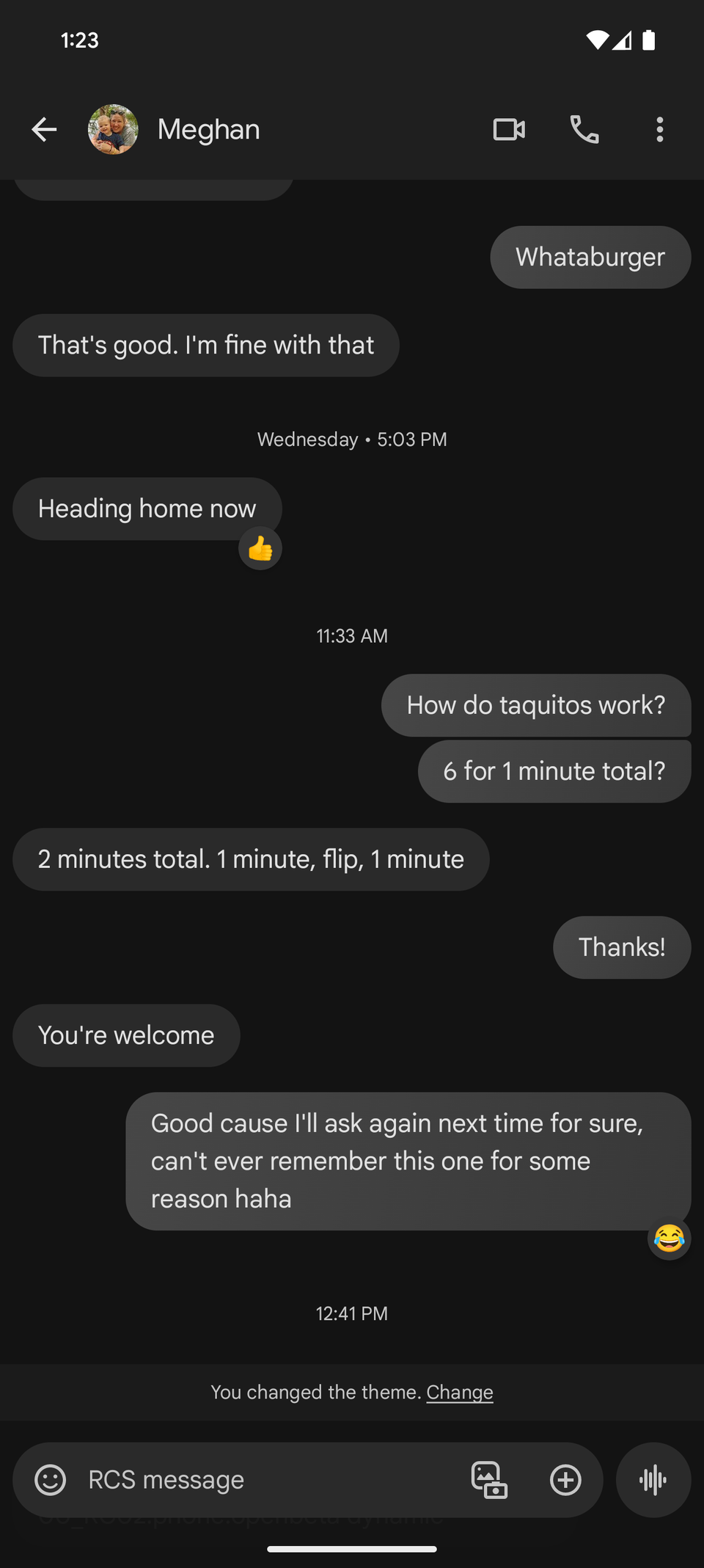
If your carrier supports Rich Communication Services (RCS) in your region, the first step in setting up Google Messages is to enable the feature.
If you're in the US, you can easily enable RCS messaging on Google Messages. It's worth turning on because of its host messaging features, which you don't get with traditional SMS and MMS.
In addition to high-quality media sharing and support for group chats, RCS messaging on Google Messages has read receipts and typing indicators.
You may already be familiar with these features because instant messaging apps like WhatsApp have offered these features for as long as I can remember.
In many ways, RCS on Google Messages feels better than apps like WhatsApp.
Your RCS messages on Google Messages are as secure as they are on WhatsApp, because both support end-to-end encryption.
This is a security feature to keep your chats protected and ensure that only the sender and recipient can read the messages, and no one else, not even Google.
To enable RCS on Google Messages, go to Messages settings > General > RCS chats, activate Turn on RCS chats, and verify your phone numbers. It requires an internet connection for the RCS messaging to work on Google Messages.
Auto delete OTPs
 Google Messages (right)
 Close
Close
Like end-to-end encryption, one-time passwords (OTPs) are also an important security feature that confirms that the user has access to the phone number. But you don't need them after the verification is completed.
OTPs can clutter your inbox, especially when you have a ton of them. One way to keep your Google Messages clean is to spot OTP messages and delete them, but this may take some time, depending on the number of OTPs on your phone.
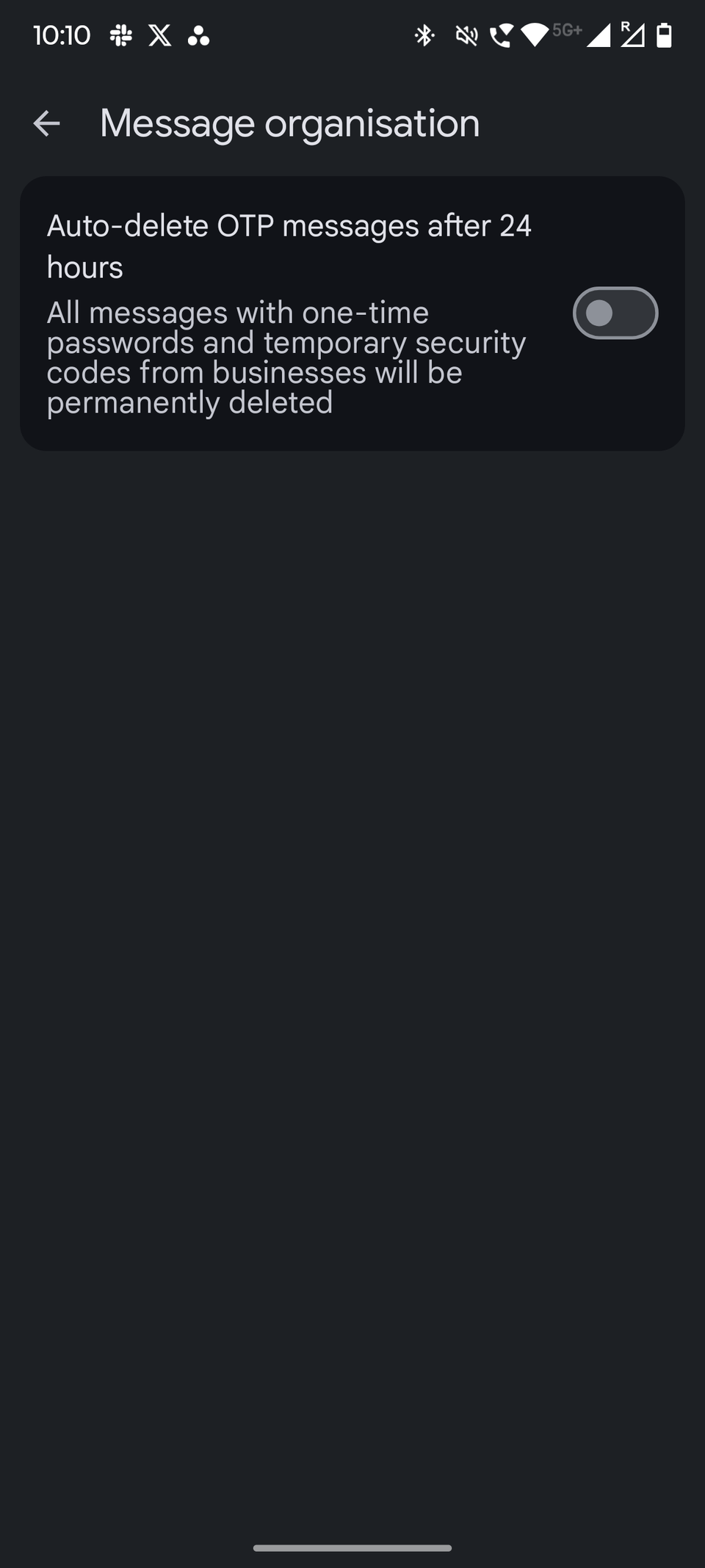
This isn't the best way to do it. Instead, use Google Messages' Auto-delete OTPs feature. When enabled, it automatically deletes messages with OTPs and temporary security codes from businesses permanently after 24 hours.
You can turn it on using a few simple steps. Open the Google Messages app, tap the profile icon, go to Messages settings > General > Message organization, and turn on Auto-delete OTP messages after 24 hours.
You don't need to manually clean up your OTPs after enabling this setting on Google Messages.
Spam protection
 Close
Close
Bad actors can target you with spam messages anywhere, and you can fall prey to those messages if you don't take precautionary steps to prevent them.
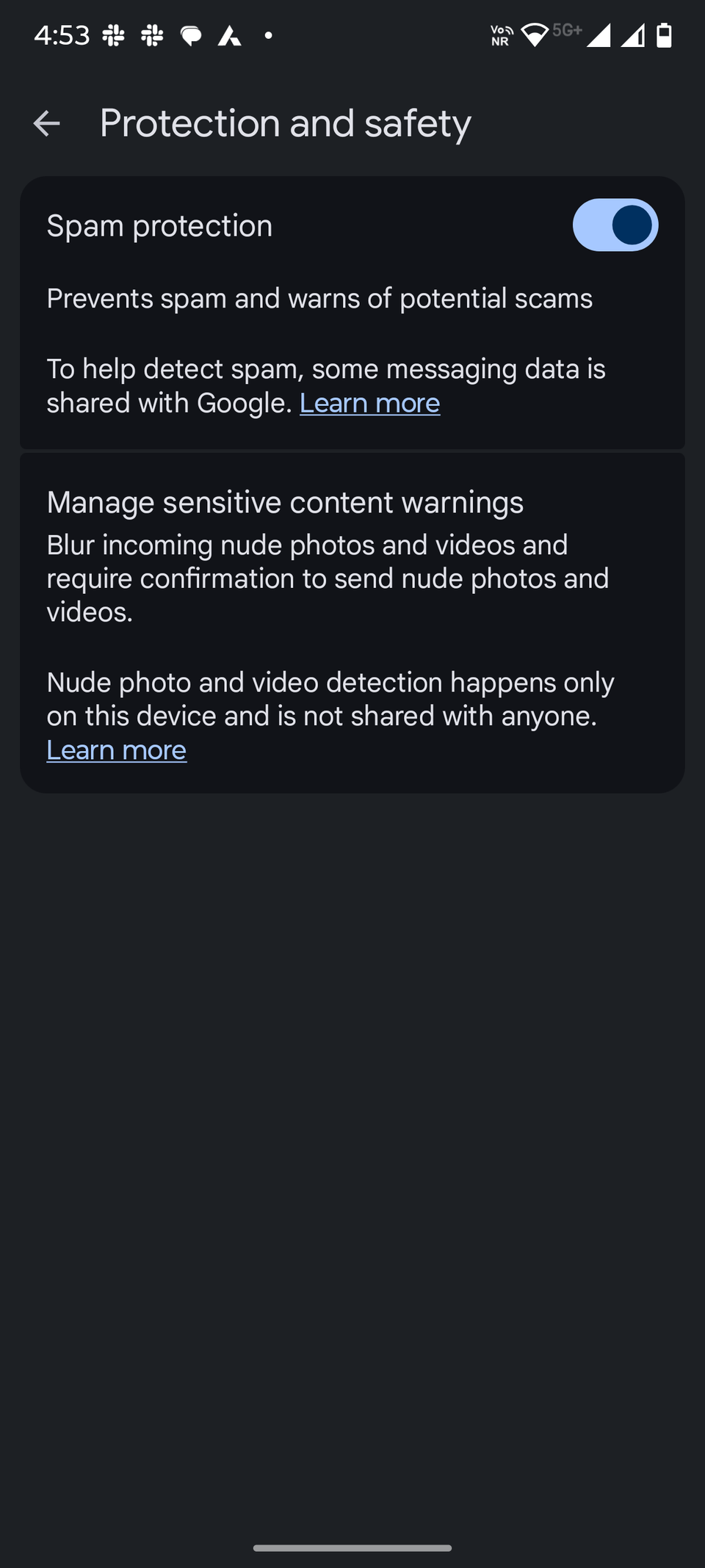
Google Messages offers a spam protection feature to keep you safe from harmful content and phishing attempts.
Google Messages features real-time spam detection that continuously monitors incoming messages to check if they include malicious links or scams.
When it detects spam, the message can't reach your inbox. Instead, Google Messages moves them to the spam folder, reducing the chance you'll accidentally engage with them. It also keeps your inbox clean.
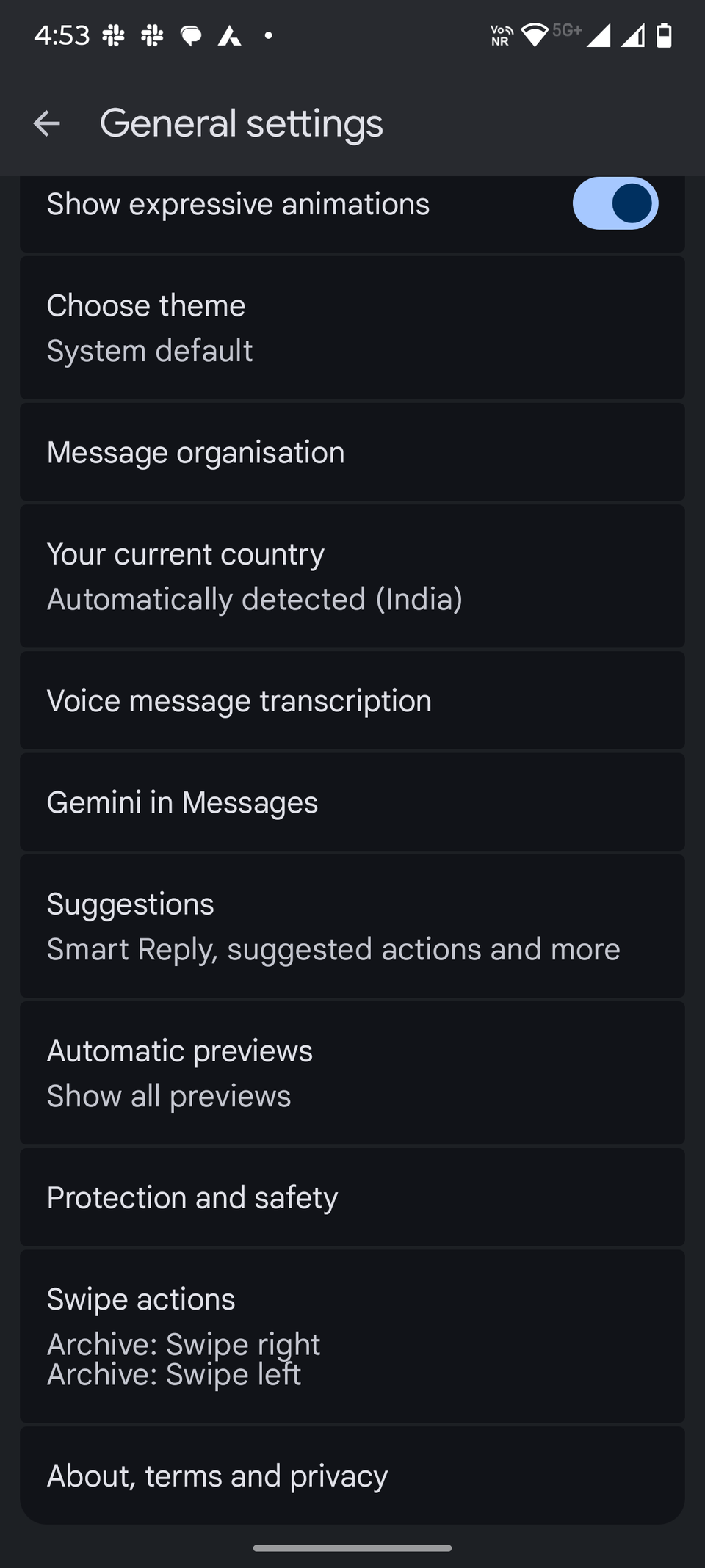
It's easy to enable the Spam protection feature on Google Messages. Open the app, tap the profile icon, go to Messages settings > General > Protection and safety, and turn on Spam protection.
If you think Google Messages has mistakenly shown something as spam, you can Report not spam. Likewise, you can report spam to Google and your carrier using the Report spam feature.
Swipe gestures
 Close
Close
The Google Messages app offers some nifty time-saving features, but they aren't always easy to spot.
Gestures are one such feature on Google Messages. You can use them to perform certain actions faster only when you learn how they work.
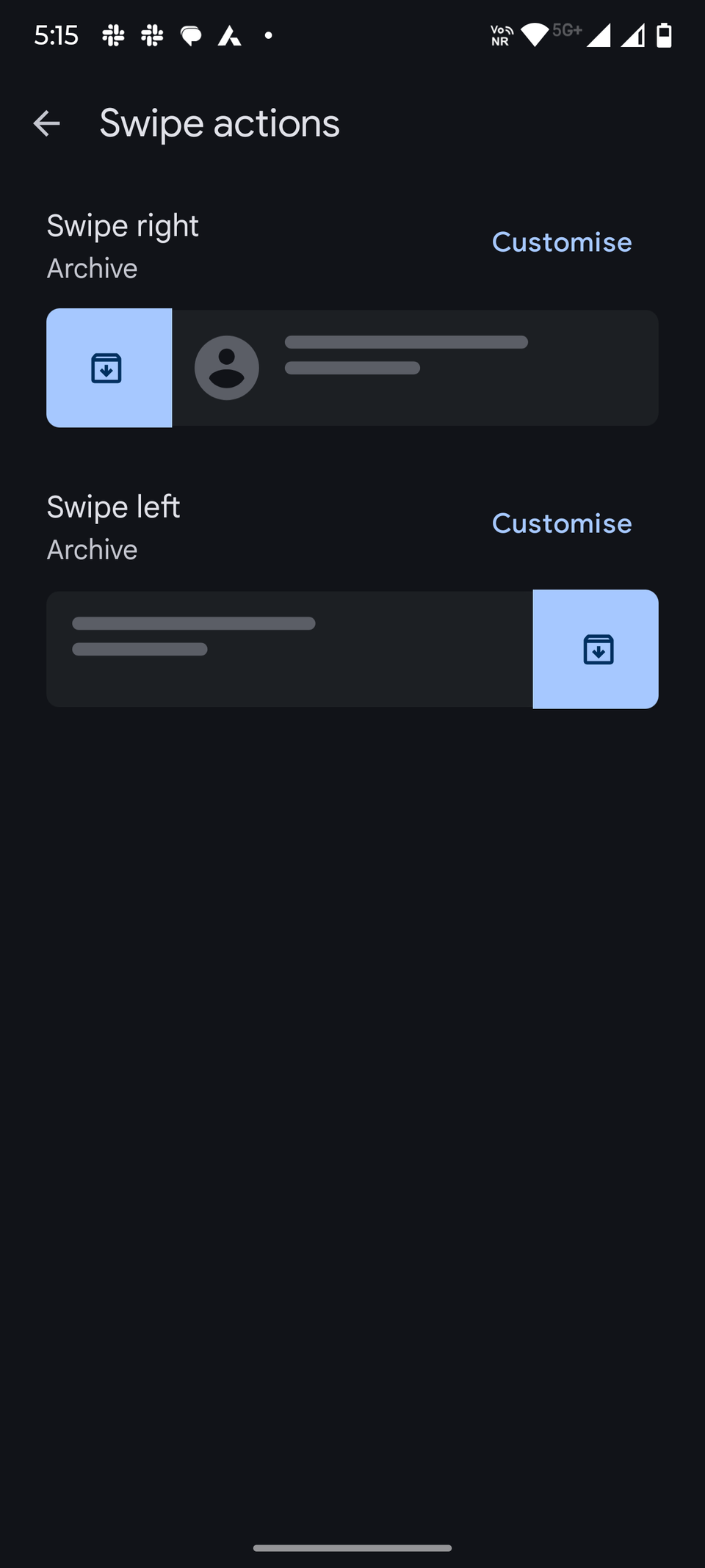
The most effective way of using gestures on Google Messages is by swiping left and right on a message thread. It supports limited actions, including "Archive," "Delete," and "Mark as read or unread."
You can assign any one item from these three either to the left or right swipe. If you choose the Delete option for the right swipe, Google Messages deletes the message when you swipe from left to the right side of your screen.
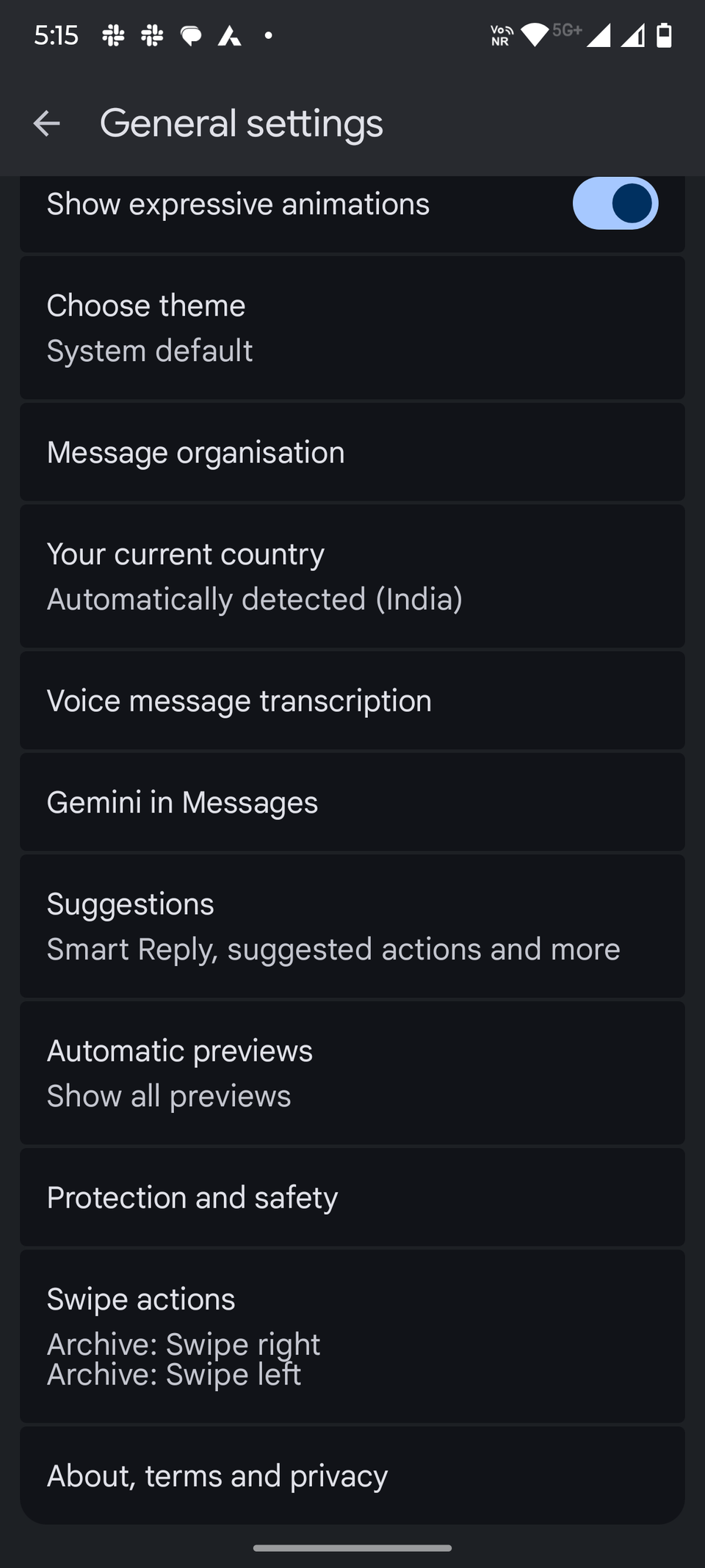
You can easily customize swipe gestures on Google Messages. Open the Google Messages app, tap the profile icon, go to Messages settings > General > Swipe actions, tap Swipe right or Swipe left to customize them. You can assign the same option to both swipe actions.
If it doesn't fit in your use case, you can turn it off using the same steps. But don't ignore it if you want to save time, because a swipe can save you a few taps.
Device pairing
 Close
Close
Being able to use a service across devices is a necessity in a multi-device world. But for app developers, it may not always make sense to port their apps to another operating system because of the poor cost-benefit ratio.
Whatever the reason, Google Messages can't run natively on any other operating system other than Android. But you can still use it on your laptop or desktop using a web browser, thanks to its Device pairing capability.
You can use the Device pairing feature to connect your phone to another phone, computer, or any device with a display, a web browser, and an internet connection.
When you set it up, you can send or receive messages on the device you have just paired. You'll still need to keep your phone turned on and connected to the internet because the actual sending and receiving of messages still happens through your handset.
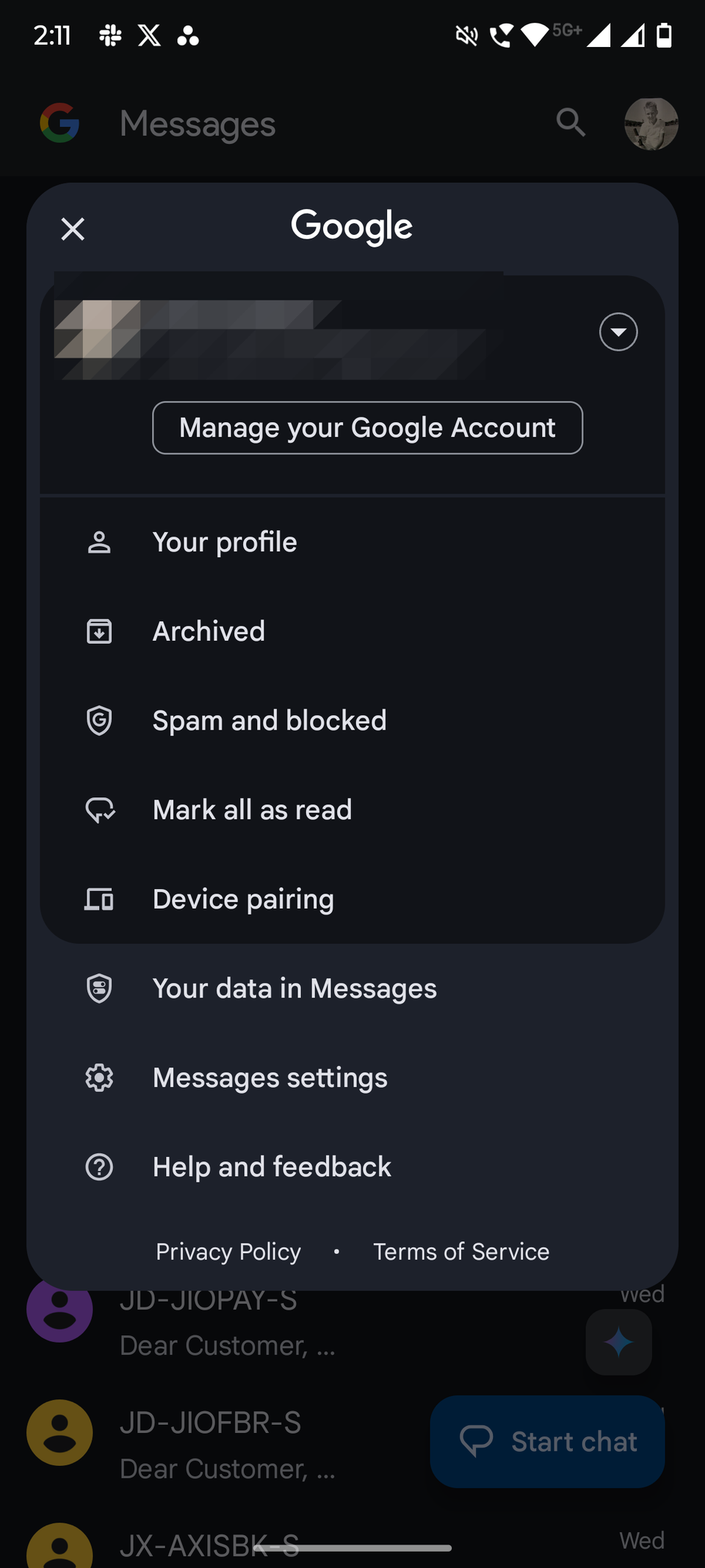
To pair your device, open Google Messages, tap the profile icon, select Device pairing, and follow the on-screen instructions.
Google Messages isn't perfect, but leaving these features unused holds you back
Google Messages hasn't gotten everything right, so it doesn't even come close to being a perfect messaging app. But on the positive side, it offers several features that can come in handy for many people.
In a way, whether you like or dislike Google Messages will depend a lot on what you are looking for in a messaging app. But if you want something that can pull off the basics well, you can't go wrong with Google Messages.
The above features aren't anything niche. They're useful tools designed to improve the basics. Start using them, and you'll notice the difference. Ignore them, and Google Messages feels limited, leading you to download another messaging app for no good reason.
Google Messages isn't perfect, but many of its shortcomings disappear after you actually use what it offers.
-
 Applications
We want to hear from you! Share your opinions in the thread below and remember to keep it respectful.
Be the first to post Images Attachment(s) Please respect our community guidelines. No links, inappropriate language, or spam.Your comment has not been saved
Send confirmation emailThis thread is open for discussion.
Be the first to post your thoughts.
- Terms
- Privacy
- Feedback
 4 days ago
I wore the Pixel Watch 4 and Galaxy Watch 8, and this is the one I'd buy
 3 days ago
Tiny smart earring blurs the line between tech and jewelry
 2 days ago
Realme GT 8 Pro review: A chaotic mix of brilliant cameras and baffling design choices
 4 days ago
You can now unlock the full capabilities of Apple AirPods on Android
Trending Now I found out if this newcomer can beat the Pixel 10 Pro XL's camera in a test
 8 ways I gaslight my AI chatbots to give better answers
 One of the best cameras for travel vloggers just got a massive price cut