 Credit: Lucas Gouveia / Android Police
 By
Ben Khalesi
Published 51 minutes ago
By
Ben Khalesi
Published 51 minutes ago
Ben Khalesi covers the intersection of artificial intelligence and everyday tech at Android Police. With a background in AI and data science, he enjoys making technical topics approachable for those who don’t live and breathe code. Ben is currently based in Sydney and has four years of professional writing experience across technology and digital industries. Outside work, he enjoys traveling, bouldering, and playing the latest AAA games.
Sign in to your Android Police account Summary Generate a summary of this story follow Follow followed Followed Like Like Thread Log in Here is a fact-based summary of the story contents: Try something different: Show me the facts Explain it like I’m 5 Give me a lighthearted recapWhen you first set up your new Samsung Galaxy S25, you probably did two things.
First, you opened the pre-installed Samsung folder and felt a bit overwhelmed. Second, you moved it to the very back of your app drawer, convinced it was nothing more than unnecessary bloatware taking up space.
You probably bought a Galaxy for the gorgeous screen and powerful hardware, not for software filler. But with recent One UI updates, Samsung has changed its native apps.
Here are seven One UI apps that you’re almost certainly ignoring, but they really should be front and center on your home screen.
Customize your Galaxy like a pro with Good Lock

Most casual users ignore the Galaxy Store’s Good Lock app because it’s a separate download that looks like a complicated third-party system mod. It seems complex, like something only an enthusiast would bother with.
In reality, Good Lock is Samsung’s officially sanctioned laboratory, offering modular access to features that are too advanced or experimental for the main settings menu yet.
Adopting these early-access utilities usually means you get official perks that regular Android users don’t.
RegiStar is a great example of a Good Lock tool that really changes how you interact with your device.
It lets you map a double or triple tap on the back of your phone to quickly run system commands such as taking a screenshot, opening recent apps, or even opening your favorite third-party apps.
Another useful module to try is SoundAssistant. It gives you full control over your phone’s sound settings. SoundAssistant’s best feature has to be Multi-Sound Routing. You can send audio to two Bluetooth devices at once.
On top of that, you get per-app volume control, so, for example, you can set it in a way that music won’t drown out navigation prompts.
Gaming Hub keeps your Galaxy cool while you play
 Credit: Samsung
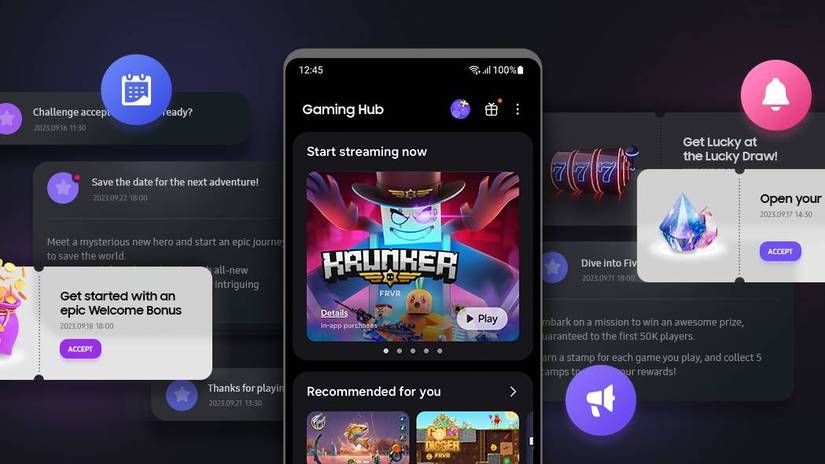
Casual users often see the Gaming Hub (formerly Game Launcher) as just an annoying folder that groups their games or shows unwanted ads. But what they don’t realize is that it includes a feature that fundamentally changes how their phone handles power.
Regular phones heat up and wear down their batteries when you game while plugged in because the charger powers the battery, which then powers the phone.
The Pause USB Power Delivery setting lets the charger skip the battery and power the processor directly.
This stops the battery from charging—and heating up—while you game, which lowers your device’s temperature and helps protect the battery over time. It basically turns your phone into a cooler-running console that performs better during long gaming sessions.
Edit videos like a pro with Samsung Studio
 Credit: Lucas Gouveia / Android Police | Samsung
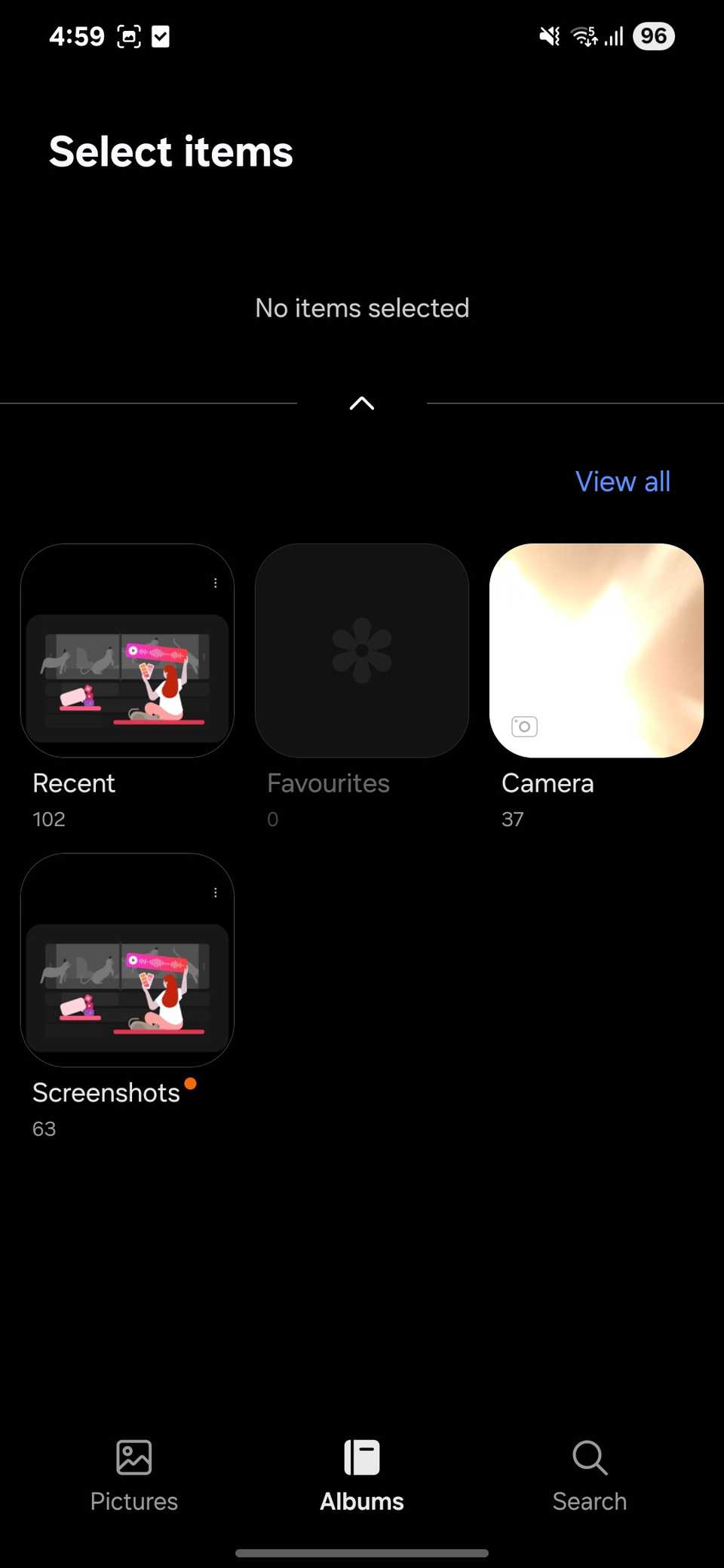
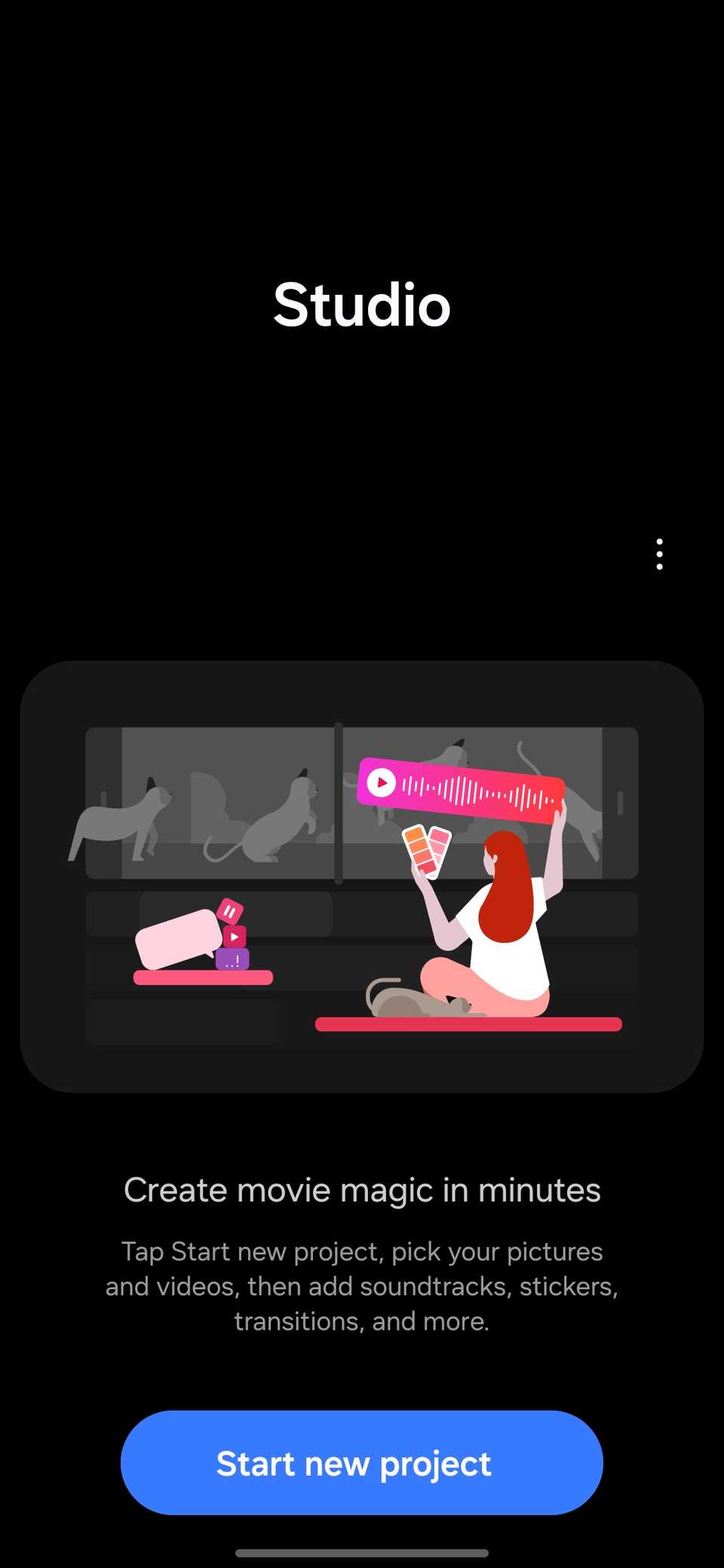
When people open the Gallery and tap the edit icon on a video, they usually think it’s just basic trimming and cropping, so they end up downloading video editing apps. But that’s where they miss out on Samsung’s clever Studio feature.
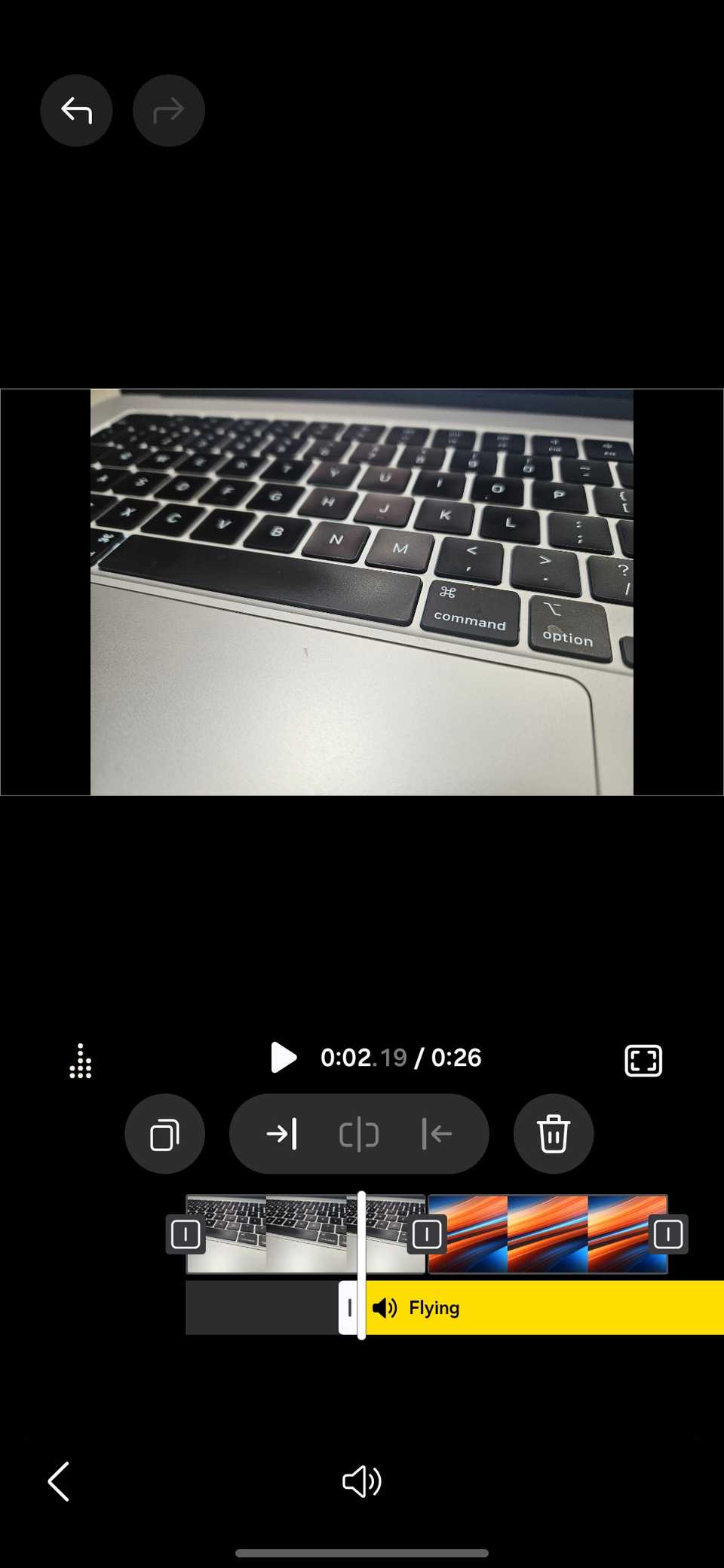
Samsung’s Studio goes head-to-head with third-party tools. It is a project-based, multi-layer editing app with a full timeline editor where you can handle multiple clips, text layers, stickers, and more.
This timeline layout gives you the power to build complex videos right on your phone. By keeping Studio separate from the gallery trimmer, Samsung makes sure casual users aren’t overwhelmed while still giving creators access to a powerful editor.
Since Studio is built right into the phone, you won’t have to deal with annoying watermarks, limited free features, or paywalls as you do with many external editors.
 Close
Close
Use Samsung Members to check your phone’s health
 Credit: Samsung
A lot of people see the Samsung Members app as just marketing noise, a support hub, or a confusing forum they quickly ignore.
But that’s a missed opportunity because it actually saves you time and money by letting you run basic hardware checks yourself, instead of relying on service centers.
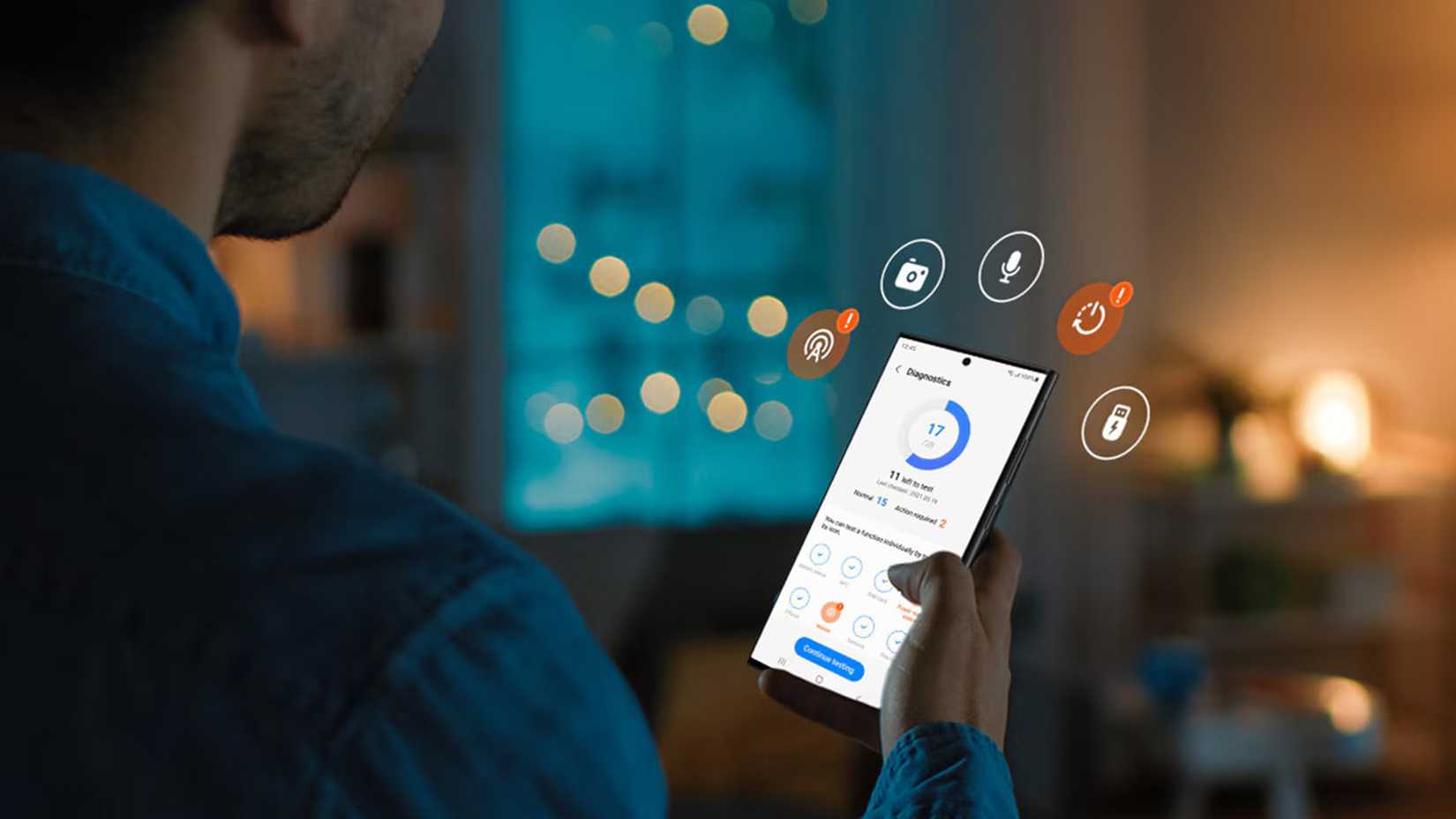
The Built-in Hardware Diagnostics lets you run thorough, validated tests on key hardware like the display, cameras, microphone, speakers, USB ports, and battery.
It’s perfect for reducing financial risk when buying or selling a used Galaxy device by giving you a trusted health report. You can run all the tests at once or pick and choose which parts to check individually.
Automate your Galaxy with Modes and Routines
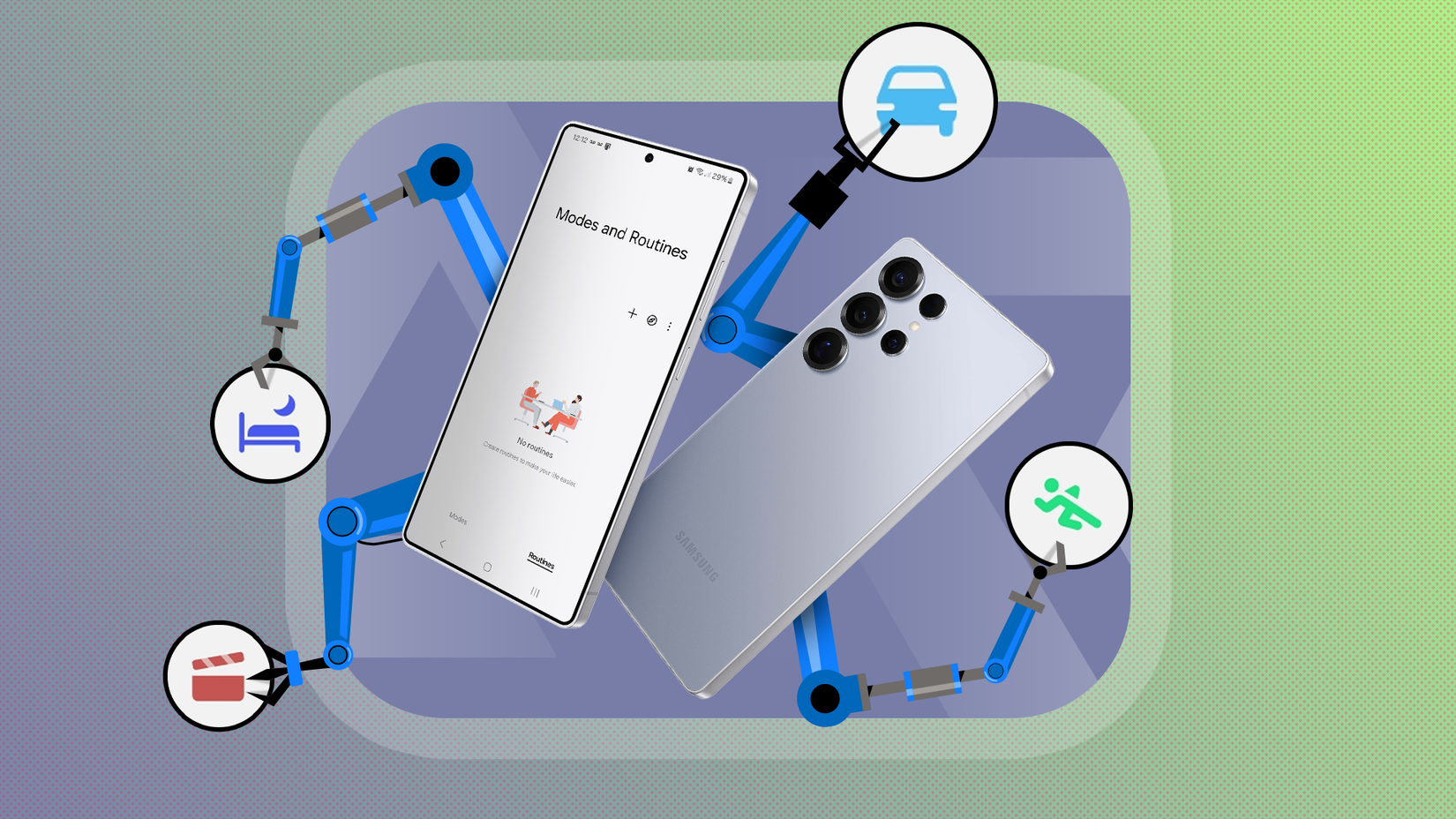 Credit: Lucas Gouveia / Android Police
Users often find setting up Modes and Routines confusing or think it’s just a basic feature, so they stick to changing settings manually. But actually, this is Samsung’s powerful built-in automation system that replaces third-party scripting apps.
This tool uses intuitive If/Then logic to automate deep system behavior based on triggers like app launch, location, or device connection.
Because it is integrated natively, it has better stability compared to external automation tools. You essentially do anything with it. Consider these simple but powerful examples.
Auto-rotate fix for media
You can automate the common chore of manually switching the screen lock toggle when switching to a video app.
With this simple automation, whenever YouTube launches, your phone switches the screen orientation to auto-rotate, and once you exit the app, it restores the previous screen orientation settings.
If (App opened: YouTube), Then (Screen orientation: Auto rotate).
Automating Focus Mode
You can skip the daily task of manually silencing your phone when you arrive at work by letting your phone switch profiles automatically.
If (Place: Work Location), Then (DND: On; Lock Screen: Custom Wallpaper).
Samsung Internet is better than Chrome for a mobile browsing experience
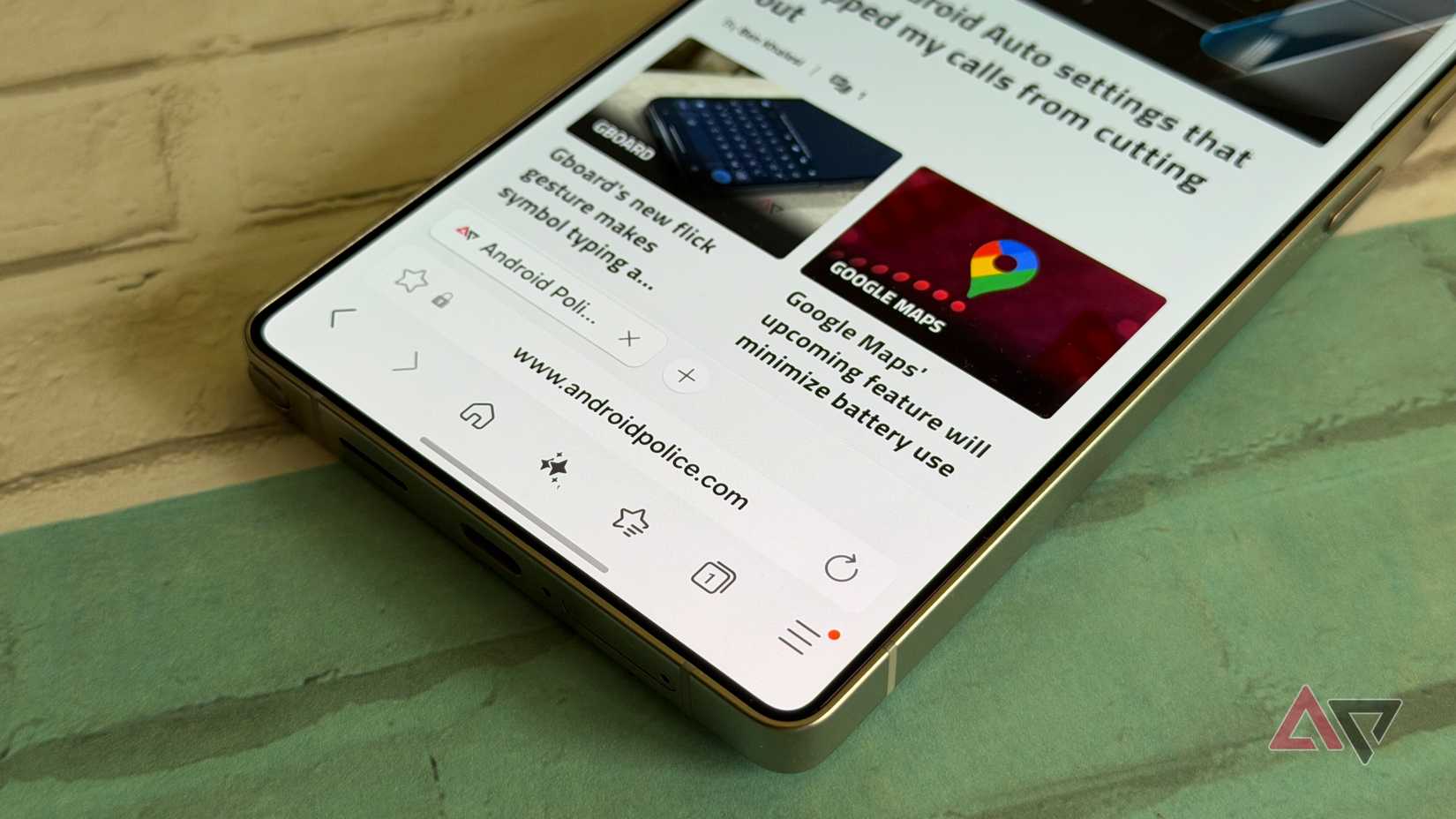
Most people ditch the native browser right away for Google Chrome, thinking the pre-installed one is outdated.
They see Chrome as the go-to for syncing and speed, and write off Samsung Internet as just an OEM copy. But that misses the point. Samsung’s browser is actually fine-tuned for mobile navigation in ways Chrome isn’t.
For example, while other browsers make you deal with tiny, awkward web player controls, Samsung Internet spots web videos and adds its own native, gesture-based controls.
Plus, unlike mobile Chrome, Samsung Internet lets you use third-party extensions right out of the box.
It also comes with a Privacy Dashboard and anti-tracking, which actively blocks tracking cookies that Chrome often misses.
And its Secret Mode is better than Chrome’s Incognito. It lets you secure your private tabs using biometric locks, keeping your browsing private even if you hand over your unlocked phone.
Samsung Flow beats Phone Link for Galaxy users
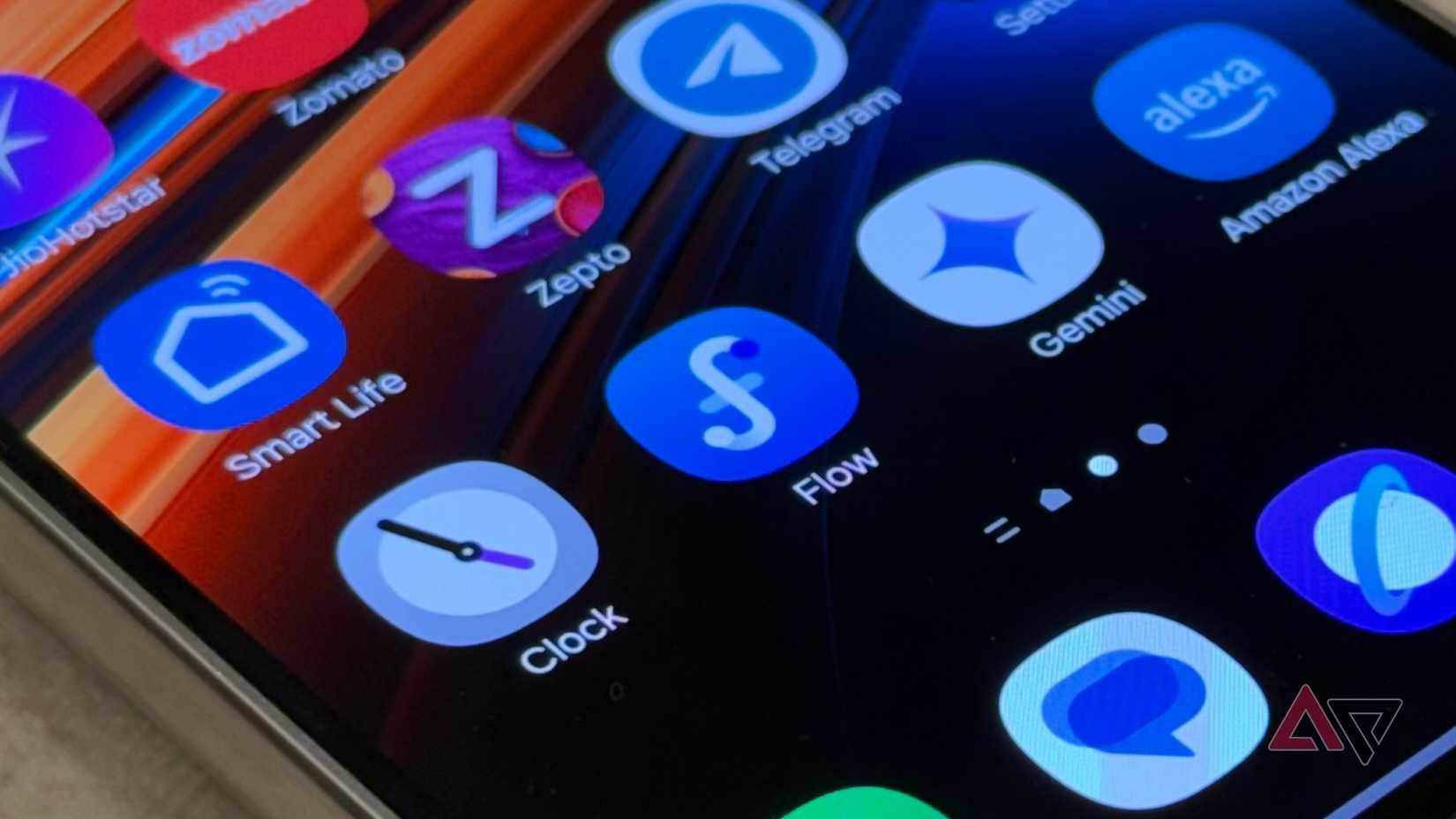
With Microsoft’s Phone Link gaining popularity, many users mistakenly assume the Samsung native app, Samsung Flow, is redundant or less capable.
While Phone Link offers similar features, Samsung Flow stands out with its instant, seamless copy-and-paste between Galaxy phones, tablets, and Windows PCs.
That fast, lag-free sync makes all the difference in busy work situations where even small delays from general apps can throw you off.
Samsung folder is not full of bloatware
Saying the Samsung folder only has unnecessary apps is old news. Although some still want it gone, Samsung is investing big in tools that are tightly built into One UI.
Their native integration means they can do system-level tasks with better speed, reliability, and energy efficiency than any third-party apps.
By replacing paid tools with free, officially supported options, it’s clear that some of the best hidden value on your Galaxy phone is tucked away in overlooked spots.
-
 Phones
We want to hear from you! Share your opinions in the thread below and remember to keep it respectful.
Be the first to post Images Attachment(s) Please respect our community guidelines. No links, inappropriate language, or spam.Your comment has not been saved
Send confirmation emailThis thread is open for discussion.
Be the first to post your thoughts.
- Terms
- Privacy
- Feedback
 2 days ago
I built the perfect note taking system using only Google and Android apps
 2 days ago
AirDrop-compatible Quick Share is breaking Wi-Fi functionality for some Pixel 10 users
 3 days ago
Google Maps gains Gemini enhancements to make navigation simpler
 2 days ago
Samsung Galaxy S26 Ultra’s faster charging looks set for a branding refresh
Trending Now I test 40 smartphones a year, and the Motorola Razr Ultra is the one to buy for $900
 I'm not worried about the jump in smartphone prices, here's why
 How to set up an Amazon Hub Locker and pick up an order