 Credit: Lucas Gouveia/Android Police
 By
Anu Joy
Published 18 minutes ago
Anu is a Features author at Android Police. You'll find her writing in-depth pieces about automation tools, productivity apps, and explainers.
Before joining AP, she used to write for prominent tech publications like iJunkie and Gizbot.
In her free time, you can find her making digital illustrations, playing video games, watching horror movies, or re-reading the classics.
Sign in to your Android Police account
Summary
Generate a summary of this story
follow
Follow
followed
Followed
Like
Like
Thread
Log in
Here is a fact-based summary of the story contents:
Try something different:
Show me the facts
Explain it like I’m 5
Give me a lighthearted recap
By
Anu Joy
Published 18 minutes ago
Anu is a Features author at Android Police. You'll find her writing in-depth pieces about automation tools, productivity apps, and explainers.
Before joining AP, she used to write for prominent tech publications like iJunkie and Gizbot.
In her free time, you can find her making digital illustrations, playing video games, watching horror movies, or re-reading the classics.
Sign in to your Android Police account
Summary
Generate a summary of this story
follow
Follow
followed
Followed
Like
Like
Thread
Log in
Here is a fact-based summary of the story contents:
Try something different:
Show me the facts
Explain it like I’m 5
Give me a lighthearted recap
Setting up a new phone is usually about the fun stuff, whether it is wallpapers, launchers, apps, or widgets. But the first thing I do is head straight into Android’s security settings.
Every phone ships with different defaults, and some leave your data, lock screen, or accounts more exposed than you would expect.
I have a specific set of adjustments I make on day one, regardless of the device I am using.
Changing these settings takes less than 10 minutes, but they immediately tighten up the phone’s privacy, keep my accounts safer, and stop a lot of the tracking and access most people never check.
Here is what I change every time I start fresh.
Restrict app permissions aggressively
Lock down unwanted app access
 Close
Close
One of the first things I fix on any new phone is the mess of default app permissions. Android has improved over the years, but many apps still request access to unnecessary features, such as your location, contacts, sensors, or files.
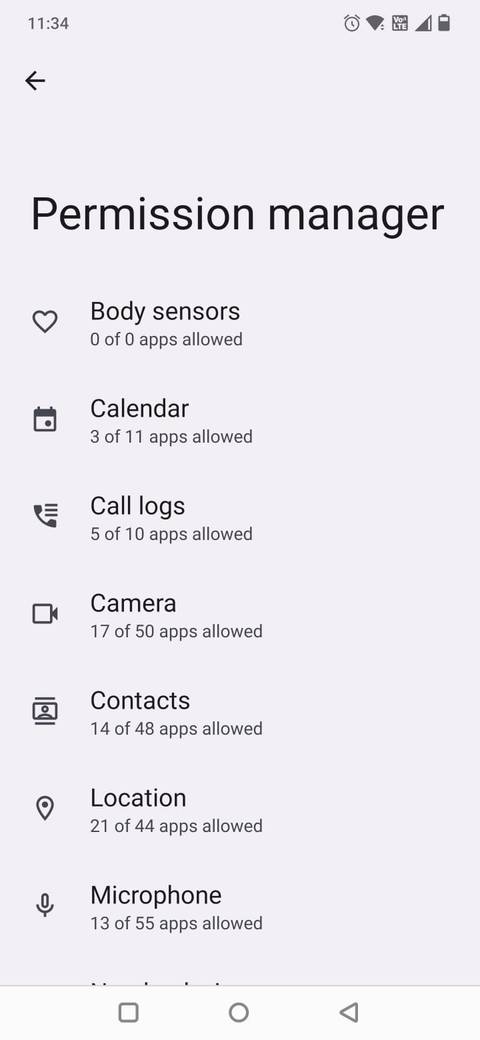
I go to Settings > Privacy > Permission manager and check the categories one by one. Viewing them by permission type makes it obvious when something looks out of place.
If a utility or note-taking app is allowed to use my location, I change it immediately. The same goes for storage, microphone, or call logs.
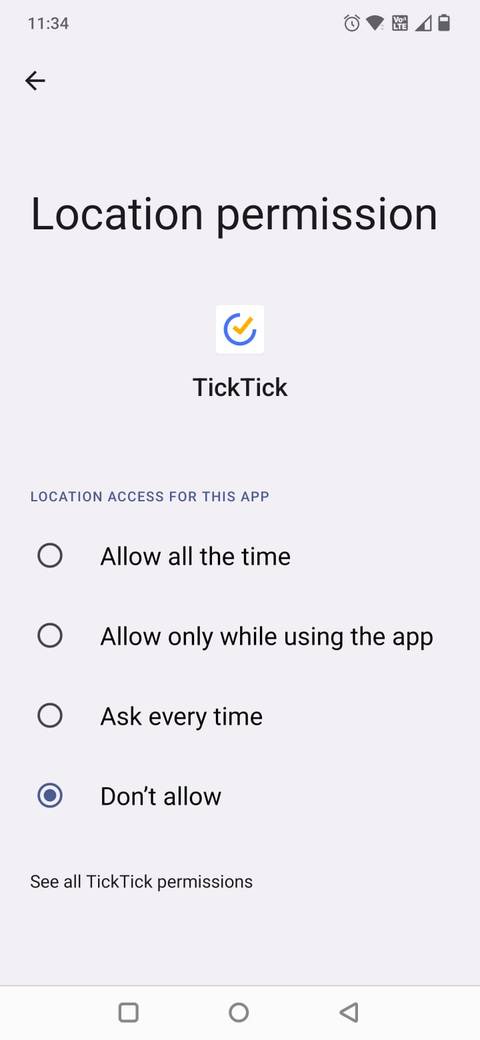
For most apps, I switch the permission to Allow only while using the app or Don’t allow. Anything that does not require constant background access, such as maps, cab apps, shopping apps, or social apps, is downgraded immediately.
Doing this early keeps my phone quieter, reduces battery drain, and prevents random apps from building a profile of me in the background.
Android automatically resets permissions for apps you haven’t used in a while. I always make sure it is turned on since it keeps your device clean effortlessly.
The steps may vary depending on your phone model. You can use the search box in your phone’s Settings app to locate these features.
Use a privacy-friendly browser and search engine
Protect your searches from data profiling
 Credit: Lucas Gouveia/Android Police
One of the easiest security upgrades on a new Android phone is switching your default browser and search engine. Chrome is fast and convenient, but it’s deeply tied to Google’s tracking and ad ecosystem.
For everyday browsing, I prefer using a privacy-first browser like Firefox. You can also try Brave or DuckDuckGo. All three block trackers by default, offer tighter cookie controls, and make it harder for websites to build long-term profiles of you.
I also switched my search engine to something less data-hungry. DuckDuckGo and Brave Search don’t log your queries or tie them to your identity.
Audit connected devices and accounts
Clean up old logins and forgotten devices
 Close
Close
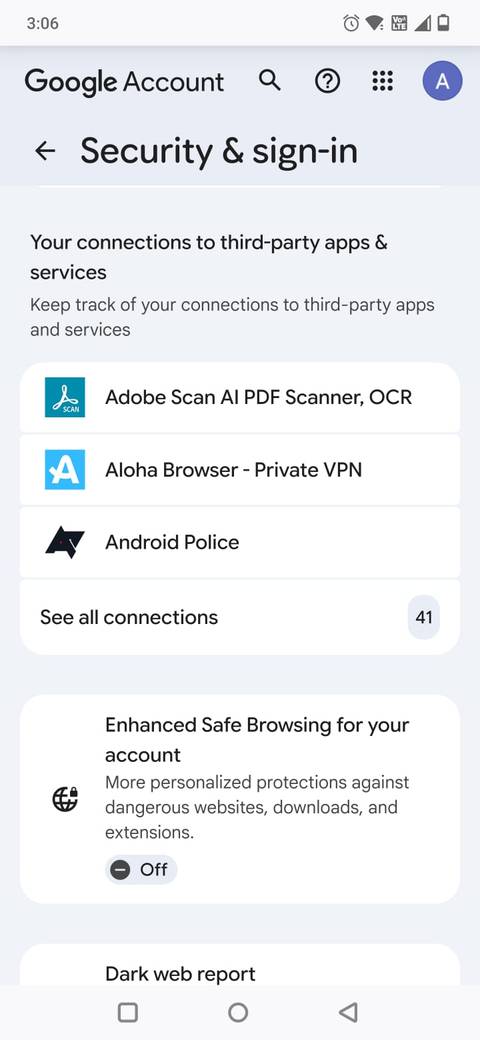
When I set up a new phone, I make it a point to review every device and account linked to my Google profile.
Over the years, old phones, tablets, and random smart displays tend to stay connected long after I’ve stopped using them. That can become a security risk.
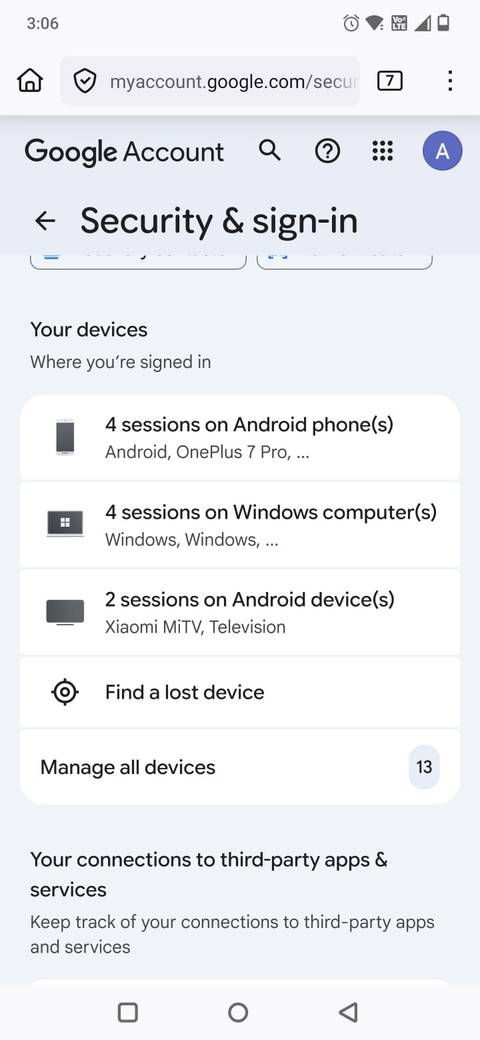
I go to https://myaccount.google.com/security from a browser, scroll down to Your devices, and remove anything I don’t recognize or no longer own.
I also check the section Your connections to third-party apps & services, where older services sometimes still have permission to read my emails, contacts, or Drive files.
This quick audit ensures that only the devices I actually trust can access my Google data.
It also reduces the chance of someone using an old login token or forgotten integration to hack my account.
Turn on SIM card lock
Prevent account takeovers
 Close
Close
It is one of those old-school security settings people forget exists, but it can save you from a major headache if your phone is ever lost or stolen.
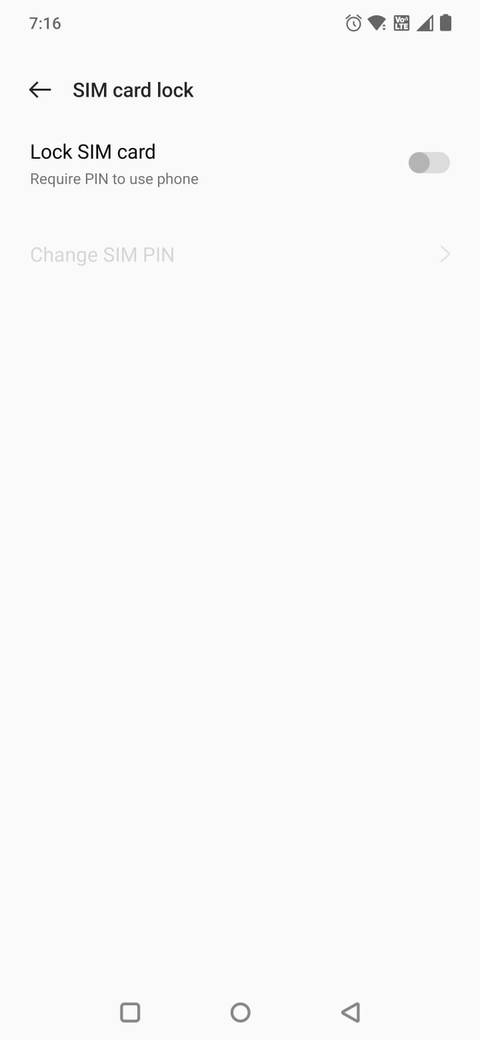
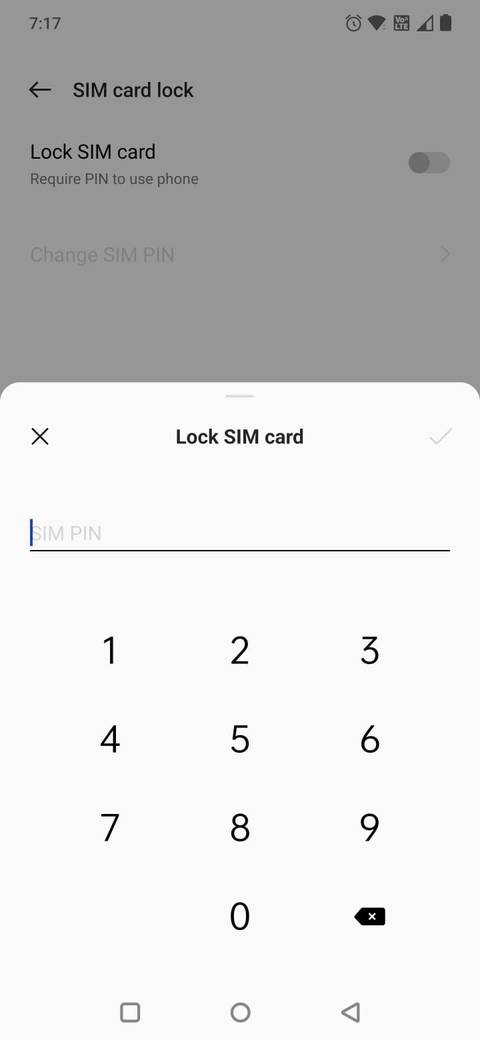
A SIM card lock adds a PIN code to your SIM. So, even if someone removes your SIM and puts it onto another device, they can’t use your number. No calls, no texts, and most importantly, no OTP hijacking, which is one of the easiest ways thieves break into your accounts.
On a new phone, I immediately go to Settings > Security > SIM card lock and activate it. Your carrier usually provides a default PIN, but you can (and should) change it to something new. When this is enabled, your phone will ask for the SIM PIN every time it restarts.
It adds one extra step during boot, but the payoff is significant. Your number becomes useless to anyone who tries to exploit it.
With how many banking, email, and 2FA systems depend on SMS, locking the SIM is the closest thing to shutting the front door before anything bad happens.
Turn on two-factor authentication everywhere
Don’t rely on passwords alone
 Close
Close
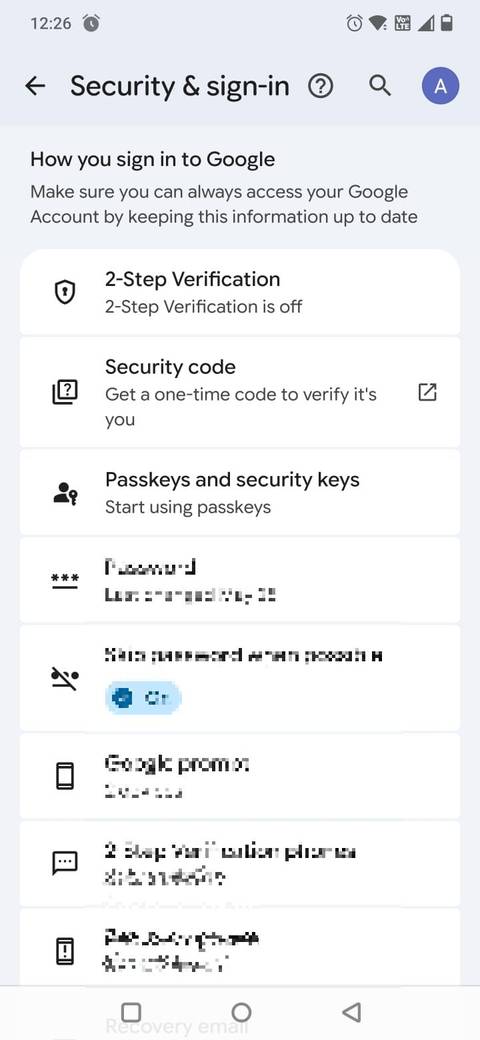
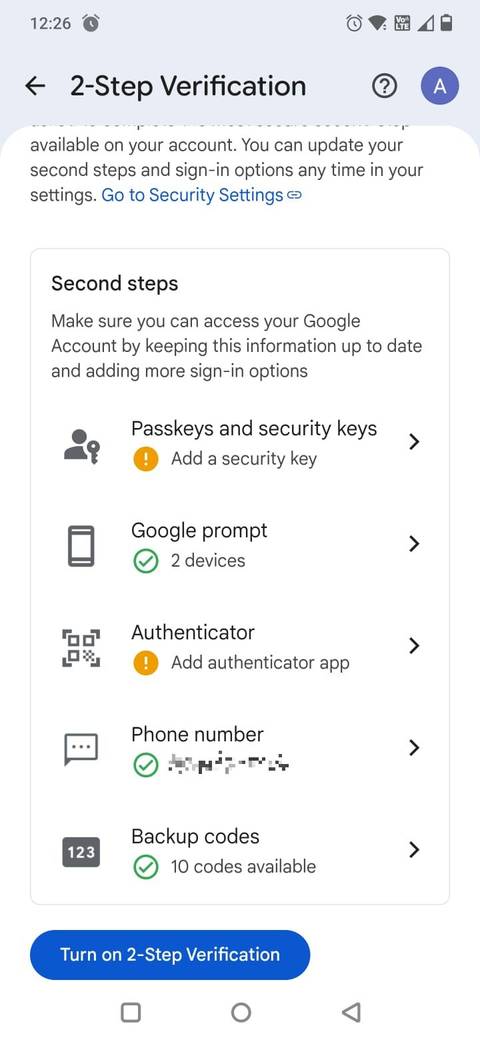
Most new phones urge you to turn on 2FA for your Google account, but that’s where most people stop.
When I set up a new phone, I go through my most important apps and turn on 2FA for each one: banking, email, password manager, cloud storage, and social media.
After activating it, even if someone gets your password, they still can’t get in without the second verification step.
On a new device, I usually start with my Google account. I go to Settings > Google > Manage your Google Account > Security & sign-in > 2-Step Verification and turn it on.
Then, I turn on 2FA on apps that handle money, identity, or personal files. To activate it, you must go to the security settings of each app and search for the security or 2FA section.
When possible, I prefer using an authenticator app like Google Authenticator instead of SMS because it’s harder to intercept.
After a few minutes of setup, everything I care about becomes tougher to break into.
Lock down screen notifications
Keep previews hidden
 Credit: Lucas Gouveia / Android Police
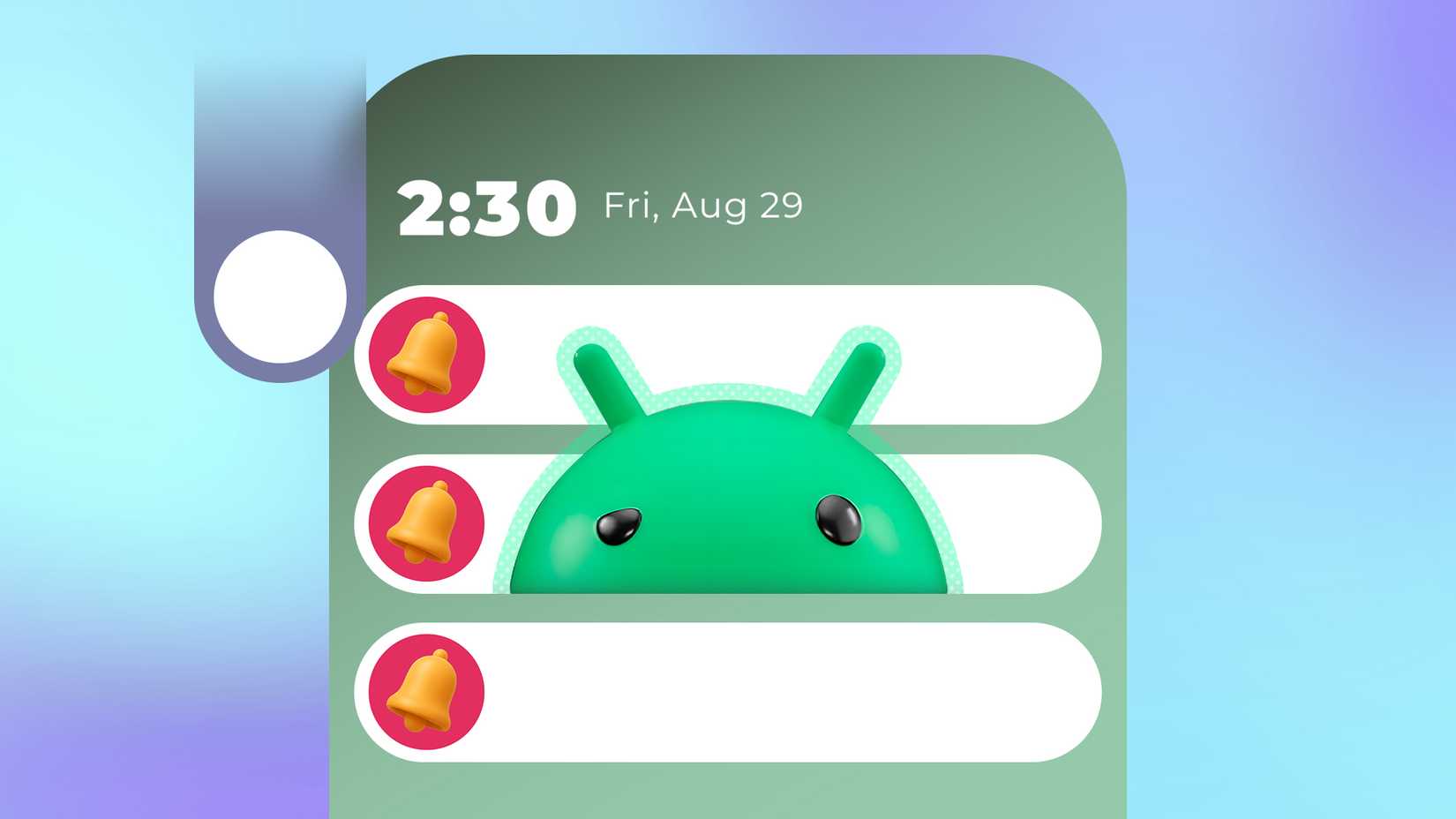
It is one of the most critical security vulnerabilities that people often overlook. Your lock screen can show OTPs, bank alerts, email previews, and messages without requiring a single authentication step.
By default, many phones display full message previews. While that’s great for convenience, it’s terrible for privacy.
That’s why one of the first things I tweak on a new Android device is how much information notifications are allowed to show when the screen is off.
On Android, you’ll find this under Settings > Notifications > Notifications on lock screen. I switch it to Hide silent conversations and notifications or, when I’m traveling or working in shared spaces, Don’t show any notifications.
You still get vibrations, sound alerts, and icons; just not the personal details.
It takes a few seconds to change, but it closes off one of the biggest real-world privacy leaks.
Limit microphone and camera access
Keep apps from quietly listening or watching
 Credit: Lucas Gouveia / Android Police | Marynova / Shutterstock
Another thing I do with any new phone is review which apps can access my microphone and camera.
I start by checking Settings > Privacy > Permission manager and going straight to Camera and Microphone. Most apps don’t need either of them.
If an app’s main function has nothing to do with photos, recording, or voice input, I switch it to Don’t allow or Allow only while using the app.
It blocks background access, meaning apps can’t quietly activate the mic or camera in the background. If an app needs access to the camera or microphone, it will request permission.
I also review the system-wide toggles under Privacy > Microphone access and Camera access. Turning either of these off shuts down those sensors for every app at once, which is perfect when I’m traveling or using public Wi-Fi.
A few tweaks that make a big difference
For many, ensuring phone security can feel like an unpleasant task. It’s usually something to think about only after something goes wrong.
However, on Android, a handful of early tweaks can prevent most of the problems that lead to account theft, data loss, or identity fraud.
Making small changes, like tightening app permissions, locking your SIM, reviewing connected devices, and keeping notifications private, can significantly reduce the ways your data can be leaked or misused.
-
 Operating Systems
We want to hear from you! Share your opinions in the thread below and remember to keep it respectful.
Be the first to post Images Attachment(s) Please respect our community guidelines. No links, inappropriate language, or spam.Your comment has not been saved
Send confirmation emailThis thread is open for discussion.
Be the first to post your thoughts.
- Terms
- Privacy
- Feedback
 2 days ago
The 2025 YouTube Music Recap could be here any day now
 3 days ago
The Gmail settings I always change on a new phone to keep my inbox under control
 5 days ago
My laptop broke, payday was far away, and an Android app quietly saved the day
 5 days ago
Samsung's Galaxy S26 Ultra may be lighter, but not by much
Trending Now Prime Video makes it easier to catch up on shows with new AI Video Recaps
 YouTube just revived a fan-favorite feature, but it's not live for everyone yet
 Best Android VPN in 2025